PaceArt Optima is a client-server application that centralizes CIED follow-up data within a clinic's local network. It supports pacemakers, ICDs, CRT devices, and implantable loop recorders. The system stores patient records, device interrogation reports, and follow-up schedules in a Microsoft SQL Server database. Clinicians access the system through installed client software that connects to the server by hostname or IP address. External data sources, including Medtronic CareLink and third-party HL7 feeds, connect through defined network interfaces. Since PaceMate's acquisition, the product has continued to run on this original architecture, with no announced migration to a native cloud deployment model.
A standard PaceArt Optima deployment uses a dedicated Windows Server host with a static, routable IP address on the clinic LAN. Client workstations must resolve the server by hostname or IP and maintain persistent TCP connectivity on the application and SQL ports. Key infrastructure dependencies include:
Multi-site clinics face a choice between two imperfect options. They can route all traffic through a VPN tunnel to a central server, which introduces latency and a single network choke point. They can also deploy a replicated SQL instance at each site, which multiplies the administrative burden and increases the risk of data inconsistency. Either approach adds significant overhead compared to a single-site deployment.
SQL Server configuration is usually the most failure-prone step in a PaceArt Optima deployment. Use this eight-step checklist:
Once SQL connectivity is verified, the next step is confirming network-level access. The following ports must be open between PaceArt client machines, the application server, and external data sources. Scope all rules to specific source IP ranges rather than opening them network-wide.
| Port | Protocol | Direction | Purpose |
|---|---|---|---|
| SQL Server port | TCP | Client → Server | SQL Server default instance connectivity |
| SQL Browser port | UDP | Client → Server | SQL Server Browser service (named instances) |
| Application ports | TCP | Client ↔ Server | PaceArt application communication (verify against your version's release notes) |
| HL7 ports | TCP | Server ↔ HL7 endpoint | HL7 MLLP inbound and outbound messaging |
| 443 | TCP | Server → Internet | CareLink SessionSync and HTTPS data feeds |
| 80 | TCP | Server → Internet | Legacy HTTP fallback for some OEM data endpoints (disable if not required) |
Confirm exact application ports against your installed PaceArt version's release documentation, because PaceMate may revise port assignments in future updates.
PaceArt Optima exchanges patient demographic and order data with EHR systems through HL7 v2.x MLLP connections. SessionSync synchronizes scheduled follow-up sessions with external scheduling or monitoring systems. Successful integration requires the following steps:
Medtronic CareLink sends remote CIED data to PaceArt through an HTTPS feed over port 443. The PaceArt server needs outbound internet access to Medtronic's CareLink endpoints, and those endpoints must be whitelisted by hostname. IP-based rules fail because Medtronic's CDN IPs rotate. Proxy servers that perform SSL inspection must trust Medtronic's certificate chain, or the CareLink feed will stop without obvious errors. Clinics that use network-level content filtering should exclude CareLink domains from deep packet inspection policies. Connectivity failures here do not generate real-time alerts in PaceArt, so staff usually discover missing transmissions only during manual audits.
The most frequently reported issues in PaceArt Optima deployments fall into three categories. First, static IP drift occurs when a server's IP changes because of DHCP renewal or NIC reconfiguration. All client connections and the CareLink feed then fail at the same time. The fix is a DHCP reservation or a true static assignment at the operating system level, not just in the router. Second, SQL Browser failures often appear after Windows updates. Microsoft updates sometimes reset the SQL Server Browser service startup type to Manual, which causes named-instance connections to fail after the next reboot. Include service startup type checks in patch management. Third, HL7 feed interruptions often stem from credential expiration. SessionSync tokens and EHR interface passwords expire on schedules that rarely match IT maintenance windows. Use calendar reminders tied to each credential's expiration date.
Alert fatigue makes these problems harder to catch. When CareLink or HL7 feeds drop intermittently, PaceArt generates incomplete transmission queues. Staff then reconcile missing data across OEM portals by hand. That time-consuming process becomes even heavier when device data reconciliation stacks on top of existing billing and insurance work.
The operational burden of PaceArt Optima is structural, not incidental. Every component described above needs ongoing human maintenance. Ambulatory cardiology centers in 2026 are accelerating migration away from on-premise clinical systems as cloud platforms mature and reimbursement models move toward connected care. Value-based contracts continue to expand and increase demand for centralized data capture that on-premise systems struggle to support. Cloud solutions already see broad adoption in healthcare imaging and diagnostics, and cardiac device management is following the same pattern.
| PaceArt On-Premise Burden | Operational Impact | Rhythm360 Cloud Capability | Documented Outcome |
|---|---|---|---|
| Static IP and server maintenance | IT staff time and a single point of failure | No server infrastructure required and fully managed cloud hosting | Zero on-site hardware dependency |
| SQL Server licensing and DBA tasks | Licensing cost and patch management overhead | Managed cloud database with no SQL administration by clinic staff | Eliminated DBA overhead |
| Manual firewall rule management | Security risk and data gaps from port misconfiguration | HIPAA-compliant cloud network with no clinic-side firewall rules for data ingestion | Reduced attack surface |
| HL7 interface maintenance and credential rotation | Feed interruptions and duplicate patient records | Bi-directional Epic and Cerner HL7 integration managed by Rhythm360 | Onboarding in days to weeks |
| CareLink and multi-OEM portal logins | Alert fatigue and missed transmissions | Vendor-neutral ingestion from Medtronic, Boston Scientific, Abbott, and Biotronik through a single dashboard | >99.9% transmissibility via redundant data feeds |
| Manual CPT code tracking | Revenue leakage on 93298, 93299, and 99454 | Automated CPT capture and billing documentation | Up to 300% revenue increase |
| Workstation-bound access | Delayed critical alert response | HIPAA-compliant mobile app for remote review and report signing | 80% reduction in critical alert response time |
Rhythm360's architecture ingests data through API, HL7, XML, and PDF parsing that uses computer vision and AI. It normalizes disparate OEM data streams into a single source of truth. Redundant data feeds provide a fail-safe when any OEM server experiences downtime. PaceArt's CareLink dependency cannot close that gap without manual intervention.
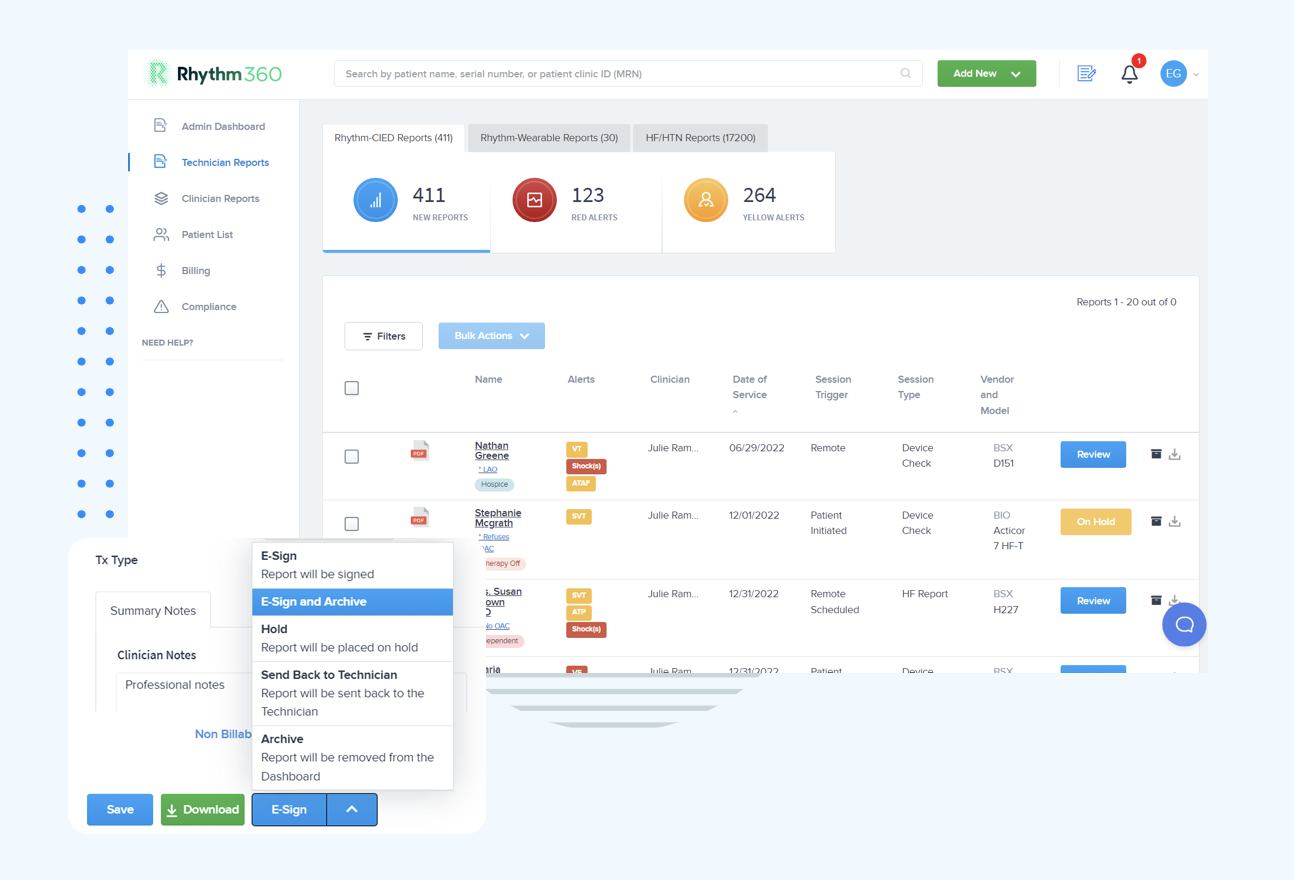
PaceArt Optima network configuration requires sustained investment in server infrastructure, SQL administration, firewall management, HL7 interface maintenance, and CareLink connectivity before a single clinical alert reaches staff. For cardiology practices managing growing CIED populations under value-based care contracts, that overhead becomes a compounding liability. Rhythm360 removes each of these layers with a vendor-neutral, HIPAA-compliant cloud platform that delivers the transmissibility and response-time improvements detailed above, along with automated CPT capture and bi-directional EHR integration, all accessible from any device.
PaceArt Optima requires a compatible version of Microsoft SQL Server. Clinics often choose newer versions to maintain current security patches and compatibility with modern Windows Server environments. The installation needs Mixed Mode Authentication, an enabled TCP/IP protocol on the configured port, and an active SQL Server Browser service for named-instance resolution. Clinics should also configure a dedicated SQL service account with db_owner rights to the PaceArt database instead of using the SA account, which creates unnecessary security risk in a HIPAA-regulated environment.
At minimum, the ports required for SQL Server connectivity must be open between client workstations and the SQL Server host, along with the SQL Server Browser port. The PaceArt application itself communicates over specific TCP ports, and clinics should confirm the exact ports against their installed version's documentation. HL7 MLLP messaging uses defined TCP ports between the PaceArt server and the EHR interface engine. Outbound HTTPS on TCP port 443 is required for CareLink and other OEM data feeds. All rules should be scoped to specific source IP ranges to limit exposure.
PaceArt Optima is an on-premise client-server application that stores data in a local SQL Server database and depends on clinic-managed infrastructure, firewall rules, and HL7 interface maintenance. Rhythm360 is a fully cloud-based platform that requires no server hardware, SQL licensing, or on-site IT configuration. It ingests data from all major CIED manufacturers, including Medtronic, Boston Scientific, Abbott, and Biotronik, through APIs, HL7, XML, and AI-powered PDF parsing. Rhythm360 manages bi-directional EHR integration with Epic, Cerner, and other systems, which removes that responsibility from clinic IT staff. The result is a single dashboard accessible from any device, with greater than 99.9 percent data transmissibility and no dependency on static IPs or local network uptime.
The three most common causes of CareLink sync failures in PaceArt deployments are SSL inspection interference, IP address changes on the PaceArt server, and proxy misconfiguration. Network-level content filters that perform deep packet inspection on HTTPS traffic will break the CareLink feed if they do not trust Medtronic's certificate chain. Because Medtronic's CareLink endpoints use CDN infrastructure with rotating IP addresses, firewall rules must whitelist by hostname instead of IP. When the PaceArt server's IP changes because of DHCP renewal or NIC reconfiguration, the CareLink feed fails silently, and staff usually discover missing transmissions only during manual audits. None of these failure modes generate a real-time alert within PaceArt itself.
Rhythm360's onboarding process, including EHR integration setup, typically takes from a few days to a few weeks, depending on practice size and the complexity of existing EHR configurations. Because Rhythm360 is cloud-based, clinics avoid server procurement, SQL installation, and firewall reconfiguration on their side. The platform's vendor-neutral architecture ingests data from all existing OEM device sources at the same time, so practices do not need to change device manufacturer relationships or patient workflows during the transition. Rhythm360's implementation team manages the integration process and reduces the burden on clinic IT staff throughout onboarding.