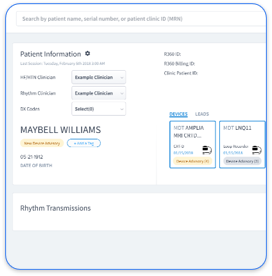
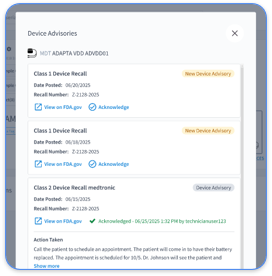
The Paceart Messaging Service routes device transmissions to the local database and triggers report generation. When it stalls, new transmissions stop processing even if base stations and programmers stay connected.
TCP/IP connections between systems maintain reliability by keeping connections open or reconnecting as needed and by automatically detecting transmission errors. Paceart depends on this behavior but cannot self-heal when the Windows service itself has crashed.
A reliable HL7 workflow follows a clear sequence: a system creates an HL7 message, transmits it via TCP/IP or HTTP, the receiving system parses the message, writes data to the database, and returns an ACK acknowledgment message to confirm successful delivery. When Paceart’s HL7 interface to your EHR fails, any step in that chain can break.
CVE-2023-31222 is a deserialization-of-untrusted-data vulnerability that affects Paceart Optima versions 1.11 and earlier. Successful exploitation can allow a remote attacker to execute arbitrary code or cause a denial-of-service condition on the Paceart server. Medtronic issued a security bulletin that directs users to install an update through technical support to fix this vulnerability.
The Paceart administrative portal’s System > Event Log view shows application-level errors that differ from Windows Event Viewer entries. Key error codes and meanings include the following items.
Escalate to Medtronic support when the same error code appears more than three times within 24 hours, when errors affect multiple device interfaces at once, or when any error appears with data loss indicators in the transmission queue.
If you repeatedly escalate the same errors or your team spends more time restarting services than reviewing patient data, the troubleshooting steps above treat symptoms instead of causes. The next section explains why these failures keep returning and which architectural changes remove them entirely.
Recurring Paceart failures usually follow structural patterns. An on-premise architecture depends on a local Windows server, a local SQL database, manual service management, and point-to-point HL7 interfaces that each need individual maintenance. Scarcity of IT specialists is a primary barrier to maintaining remote cardiac monitoring workflows, and every hour a device technician spends restarting services is an hour not spent on patient care.
The table below quantifies the operational cost of these architectural differences across four metrics that directly affect patient safety and practice revenue. These metrics include data transmissibility, critical alert response time, billing capture, and onboarding time.
| Metric | Paceart Optima | Modern Cloud Platform | Rhythm360 |
|---|---|---|---|
| Data Transmissibility | Dependent on local server uptime and manual service restarts | Redundant cloud infrastructure with automated failover | 99.9% transmissibility via redundant data feeds and AI-powered extrapolation |
| Critical Alert Response Time | Manual triage, with delays common during off-hours or service outages | Automated alert routing with configurable escalation | Up to 80% reduction in critical alert response times |
| Billing Capture | Manual documentation, with CPT codes frequently missed during downtime | Automated CPT tracking with audit-ready documentation | Automated CPT tracking with audit-ready documentation captures codes frequently missed during downtime |
| Onboarding Time | On-premise installation with timelines that vary by IT environment | Cloud provisioning completed in days to weeks | EHR integration and full onboarding completed in days to a few weeks |
Rhythm360 ingests data from major device manufacturers such as Medtronic, Boston Scientific, Abbott, and Biotronik via API, HL7, XML, and AI-powered PDF parsing. This approach removes the single-vendor dependency that often turns Paceart into a bottleneck. Cloud-agnostic integration architectures that use open standards like FHIR and HL7 reduce vendor lock-in and improve resilience, which is the architectural principle Rhythm360 follows.

See how Rhythm360’s automated architecture eliminates manual service restarts entirely.
The full onboarding process for Rhythm360, including EHR integration setup, usually takes from a few days to a few weeks. Timelines depend on the complexity of the existing environment and the number of EHR systems involved. Rhythm360 supports bi-directional integration with major EHR systems via HL7, so most practices keep existing EHR workflows and connect Rhythm360 as a unified data layer on top of them. This streamlined implementation avoids the prolonged IT projects that have historically discouraged cardiology practices from leaving on-premise systems.
Historical patient and device data stored in Paceart’s local SQL database can be exported and migrated as part of onboarding. Rhythm360’s data normalization infrastructure, which uses API ingestion, HL7 parsing, XML processing, and AI-powered computer vision for unstructured PDFs, handles the heterogeneous data formats that legacy systems create. Practices retain access to prior transmission records and reports within the new platform, which preserves continuity for ongoing patient management and audit documentation. Implementation scoping confirms specific data migration scope and timelines.
Practices that implement Rhythm360 have reported up to a 300% increase in revenue generation. This figure reflects three compounding effects: optimized CPT code capture for remote monitoring codes such as 93298, 93299, 99454, and 99457 that are frequently missed during legacy system downtime, improved staff efficiency that allows device technicians to manage larger patient panels without additional headcount, and new recurring revenue streams through Rhythm360’s integrated Heart Failure and Hypertension RPM service lines. Revenue recovery begins as soon as the platform goes live and automated billing documentation replaces manual tracking, so return on investment starts with the first billing cycle after go-live.
Request a revenue impact analysis tailored to your practice’s panel and billing capture rate.
The recurring errors covered in this guide, including messaging service crashes, HL7 ACK failures, missing reports, USB transmission drops, and the unpatched CVE-2023-31222 vulnerability, share a common root cause. An on-premise architecture needs continuous manual intervention to stay operational. Each restart procedure above provides a valid short-term fix, yet none resolves the fragility of a system that depends on a single local server, a single SQL instance, and point-to-point interfaces that break silently when any upstream system changes.
Modern cloud platforms address these root causes at the architectural level. Redundant infrastructure removes single points of failure. Automated HL7 and API integrations self-monitor and alert on degradation before transmissions disappear. AI-powered alert triage reduces noise so clinicians can focus on critical events. Automated CPT documentation captures every billable remote monitoring event, regardless of whether a service restart occurred at 2 a.m.
Rhythm360 follows these principles and supports cardiology practices that manage patients with pacemakers, ICDs, implantable loop recorders, CRT devices, and chronic conditions such as heart failure and hypertension. The platform is vendor-neutral, HIPAA-compliant, and integrates with the major EHR systems already in use at most cardiology practices.