Your implanted pacemaker communicates wirelessly with a bedside monitor or a smartphone app using Bluetooth or other wireless technology. That monitor or app then forwards the data over cellular or Wi-Fi to the device manufacturer's server. That server is a separate environment from your clinic's electronic health record, and authorized clinicians access it through a secure portal.
A transmission failure is a connectivity problem on the data path between your monitor and the clinic's server. The pacemaker continues to pace your heart during these events. Pacemakers are designed to work continuously and include many safety features. A missed transmission does not change that behavior.
Signs that the pacemaker itself is likely functioning normally include no dizziness, no fainting, no chest pain, and no unusually slow pulse. If any of those symptoms appear, stop troubleshooting and go directly to the emergency guidance section at the end of this article.
A dark screen usually means the monitor has lost power or has gone into sleep mode. Medtronic advises pressing the gray button once to view the start-up screen. The date shown is the day of the last successful transmission.
Start with power, since a dark screen most often reflects a power problem. Then move through the steps in order.
A steady light during normal hours usually means the monitor is idle and waiting for the next scheduled transmission window. Medtronic notes that if the monitor lights up on its own, no action is needed, because it is cycling through software updates automatically. Keep the monitor plugged in and within the recommended distance of where you sleep.
A flashing or amber indicator usually signals that the monitor is searching for a signal or has encountered a connectivity error. If the screen shows an error with cellular signal bars, Medtronic recommends changing the monitor's orientation or moving it closer to a window or outside wall. Keep it within approximately 6.5 feet (2 meters) of where you sleep.
Work from the environment to the device itself so you do not miss a simple fix.
Smartphone app failures often relate to Bluetooth and phone settings rather than the pacemaker. App restart, phone restart, app update, and operating-system update can all invalidate or disrupt a Bluetooth bond, which may require re-pairing or controlled recovery. A companion app may also show “Connected” even though it has not restored notification subscriptions or uploaded measurements collected during an interruption. A green icon does not always mean data has reached your clinic.
Work through these steps in sequence so you restore both the Bluetooth link and the app's permissions.
A letter or call from your clinic about a missed transmission means the clinic's server did not receive data during an expected window. This situation usually does not represent a medical emergency, but it does require action. Work through the power, connectivity, and Bluetooth steps above for your monitor type. Then call your clinic to confirm whether a manual transmission is needed or whether the gap has already been resolved.
Each major manufacturer maintains its own support route. Contact the appropriate line for your device:
Bedside consoles and smartphone apps fail for different reasons. Bedside monitors depend on a continuous power supply, a stable cellular or Wi-Fi connection, and adequate signal strength at the monitor's location. Their most common failure points include unplugged power cords, weak cellular signal, and router outages. Medtronic's MyCareLink Relay automatically defaults to a cellular connection if Wi-Fi stops working, which provides a built-in fallback.
Smartphone apps introduce additional failure modes such as Bluetooth pairing loss, revoked app permissions after an OS update, and background-process restrictions that prevent the app from maintaining a connection. Android applies background-process restrictions that affect how apps maintain or recover Bluetooth communication, and setting an automatic connection option alone does not solve every background-recovery condition. Bedside monitors are generally more reliable for patients who do not regularly carry a smartphone, because they operate independently of phone settings and OS updates.
For pacemakers, routine remote data collection is typically every 3 months. Your clinic expects a transmission roughly four times a year on a scheduled basis, in addition to any automatic alerts your device may send. If a scheduled automatic transmission is missed, such as when you walk away from the bed during the transmission window, Medtronic's MyCareLink system will automatically retry sending that data for up to 14 days.
Missing a single night near your monitor rarely creates a clinically meaningful gap. Longer stretches away, such as travel without your monitor, can delay the clinic's view of your device data. When traveling for a long time, ask whether your remote monitor or phone app will work at your destination. Your pacemaker continues to function regardless of whether data has reached the clinic.
Because transmission gaps and device interference are often confused, this section separates the two and highlights the main examples.
The following factors can disrupt data transmission but do not change how the pacemaker paces your heart:
The following factors can potentially affect the device itself and should be discussed with your clinic:
From the clinic's perspective, a transmission failure does not always appear as a clear failure. A wrong-device or wrong-patient assignment can make data land in the wrong chart or fail to reconcile to the intended patient even if the transmission reaches the vendor interface. Manufacturer server outages can also delay data entirely.
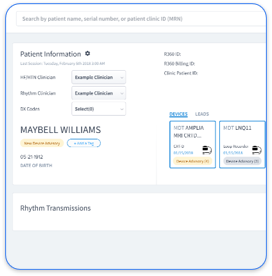
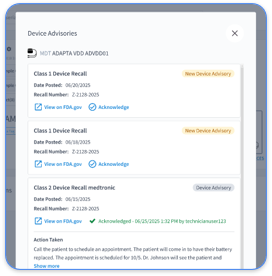
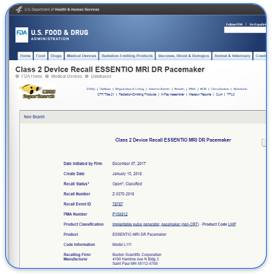
Each major cardiac device manufacturer runs its own remote monitoring platform: Medtronic CareLink, Boston Scientific LATITUDE, Abbott Merlin.net, and Biotronik Home Monitoring. A device clinic following a mixed patient population may need to log into all four manufacturer portals daily, plus the EHR where the patient's chart lives. A transmission that arrives at a manufacturer's server but never attaches to the correct patient record becomes a silent gap for the clinic.
A remote monitoring program can fail operationally even when devices are generating data, because benefit depends on structured workflows to review and act on alerts rather than on the monitoring technology itself. Work performed inside a manufacturer portal produces no record in the patient's chart unless someone manually re-enters it. That gap creates extra work and risk even when the transmission was reviewed.
Remote monitoring does not replace emergency care because it is not watched every second like a hospital monitor. Use the following guidance to decide whom to contact.
Call your device clinic (not 911) for:
Call 911 or go to the nearest emergency room immediately for:
Chest pain is especially important to take seriously because it may be caused by a heart attack or another serious condition unrelated to the device. Do not wait for your monitor to send an alert before seeking emergency care.
Modern pacemakers and their monitors are designed to transmit data automatically, often nightly. They also send immediate alerts when the device detects a significant event such as a new arrhythmia or a device threshold change. If your monitor appears to be transmitting continuously, it may be catching up on a backlog of missed transmissions, downloading a software update, or responding to an alert condition. This pattern is generally normal. If the activity light has been on for more than 24 hours without resolving, contact your manufacturer's support line to confirm the monitor is functioning correctly.
Transmission disruptions usually come from connectivity problems such as lost Wi-Fi or cellular signal, Bluetooth pairing failures, revoked app permissions after a phone OS update, an unplugged monitor, or a manufacturer server issue. These issues affect data flow, not the pacing function. Device disruptions form a separate category and require much stronger forces, including industrial-strength magnetic fields, certain high-powered medical equipment, or arc-welding equipment operating in close proximity. Standard household items including microwave ovens, electric blankets, televisions, and computers are safe for pacemaker patients when in good working condition. A standard refrigerator magnet (~10 gauss) is below the ≥90 gauss typically required to switch modern pacemakers into asynchronous pacing mode, so fridge magnets are not a documented risk for triggering magnet mode in current-generation pacemakers, though such a field can still induce electromagnetic interference. If you are unsure about a specific device or environment, ask your device clinic before exposure.
Neither fridge magnets nor electric blankets are documented causes of pacemaker data transmission failure, though electric blankets are documented to cause pacemaker malfunction such as power-on reset and mode change. Fridge magnets are far too weak to interfere with either the pacemaker or its wireless communication. Electric blankets operate at household current levels and are considered safe for pacemaker patients when in good condition. Transmission failures caused by these items have not been established in clinical guidance. If you notice any unusual symptoms such as dizziness, palpitations, or a feeling of being unwell while near any electrical or magnetic item, move away from it and contact your device clinic.
A missed transmission means your clinic did not receive data during an expected window. The pacemaker continues to work during that gap. Clinically, the significance of a missed transmission depends on how long the gap lasts and whether your device has generated any alerts during that period. For stable pacemaker patients, routine remote data collection is expected approximately every three months, and Medtronic's MyCareLink system will automatically retry a missed scheduled transmission for up to 14 days. If your clinic contacts you about a missed transmission, follow their instructions. They may ask you to perform a manual transmission or schedule an in-person visit. A single missed transmission is rarely an emergency, but persistent gaps should be resolved promptly so your clinic maintains a complete view of your device data.
Talk To Our Team About Your Monitoring Workflow
A pacemaker data transmission failure reflects a problem along the data path, while the pacemaker continues to regulate your heart rhythm. For patients and caregivers, the symptom-first steps above address the most common causes, including power, signal, Bluetooth, and app permissions. The manufacturer-specific pathways then provide a direct route to support when self-troubleshooting does not solve the problem.
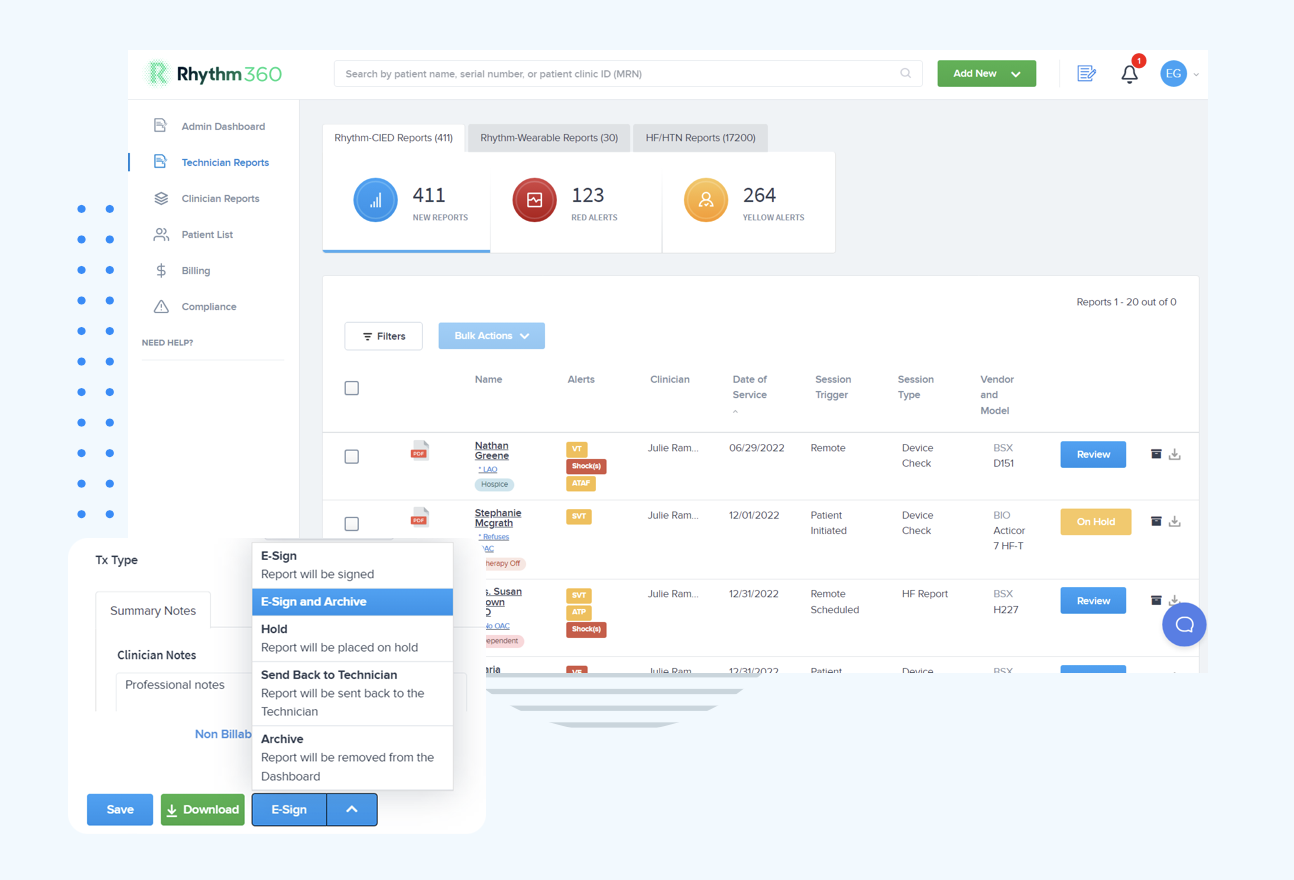
For device clinics, the more complex challenge involves transmissions that reach a manufacturer server but never attach to the correct patient record, silent gaps across four separate manufacturer portals, and the operational burden of manual reconciliation. Rhythm360 is built to address that challenge by consolidating CIED data from all major manufacturers into a single platform and pairing reliable data ingestion with workflow tools that support timely clinical action and accurate billing.
See How Rhythm360 Closes The Gap